Contents
Managing The Projects
Managing Data Entry Template
By clicking on project name so you have further options to customize your file. Here you can add variables for obtain your project.
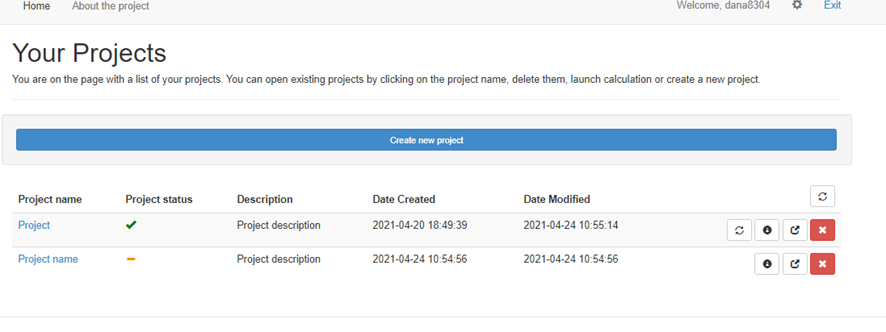
Figure 1. Home page
You can view here all project data of your project. If you have downloaded templates in Calculation Settings please upload them clicking on button "Upload Newe file" in "Managing data entry template" field. Or here you can also download one of given templates (Figure 2).
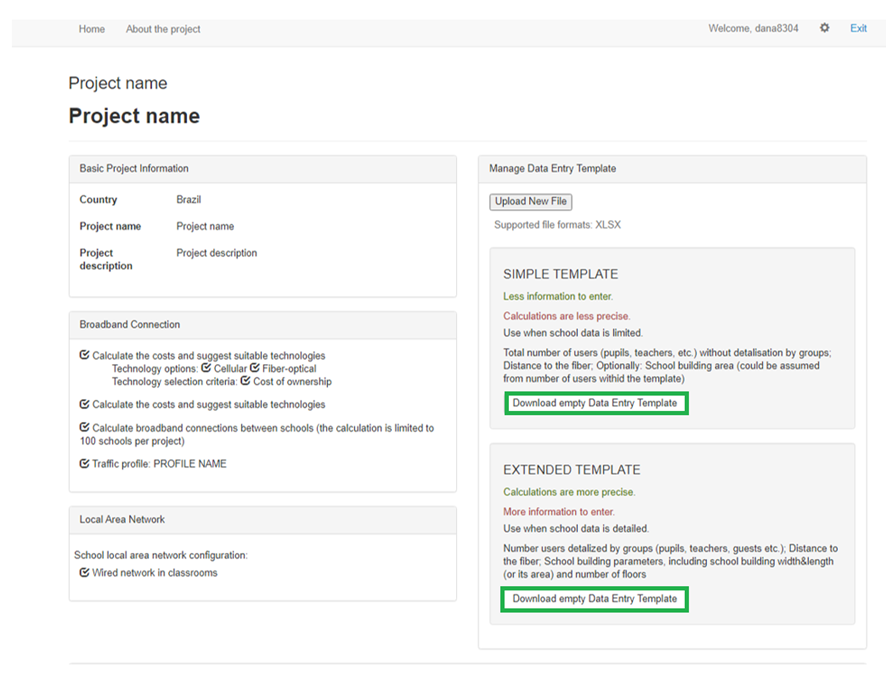
Figure 2. Templates downloading
Template
Types of templates:
Simple template - use when school data is limited (Required Bandwidth for connecting school; Distance to the fiber; School building area).
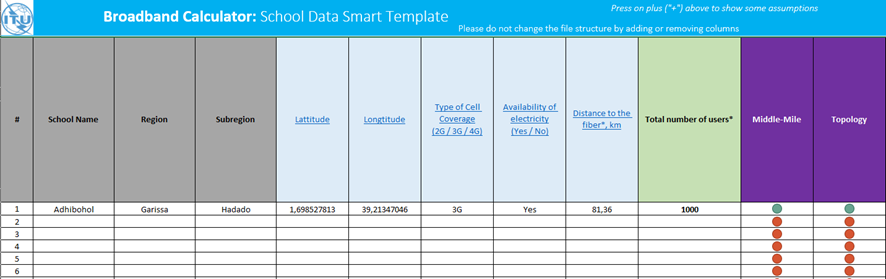
Figure 2. Simple template
School Identification - this section is used only for unique identification of school, but does not used for calculations. All of these fields could be missed, in this case objects (schools) will receive automatic names during the data import (e.g. School #1, School #2 etc.)
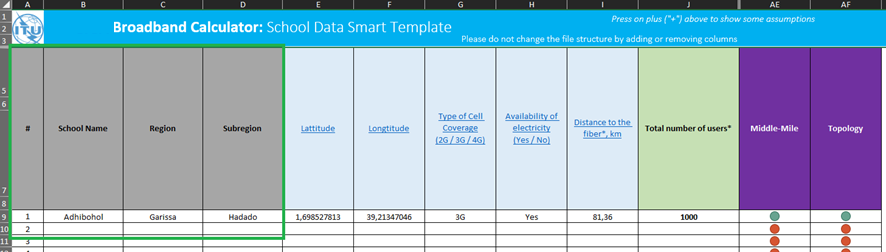
Figure 3. School Identification
Geographical Location and Infrastructure Presence - this section is used by methodology of connecting schools to broadband transport backbones. Parameters that you should enter: Latitude; Longtitude; Type of Cell Coverage (2G / 3G / 4G); Availability of electricity, Distance to the fiber.
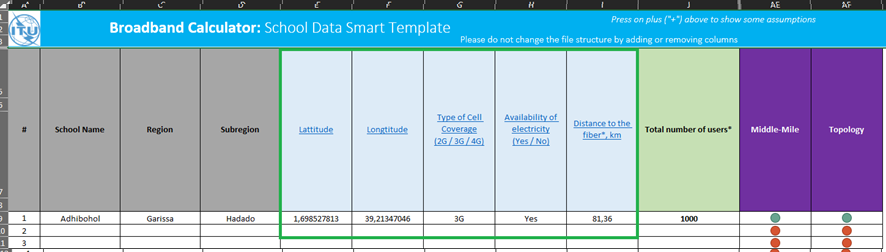
Figure 4. Geographical Location and Infrastructure Presence
Users - this section is used for calculation number of devices that will be used in school.
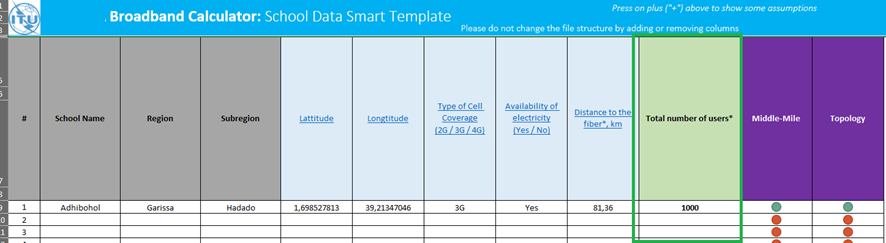
Figure 5. Users
Data entering completeness - this section is used for demonstrating if it is all necessary information was interred for particular school (in the row) for future processing and calculations.
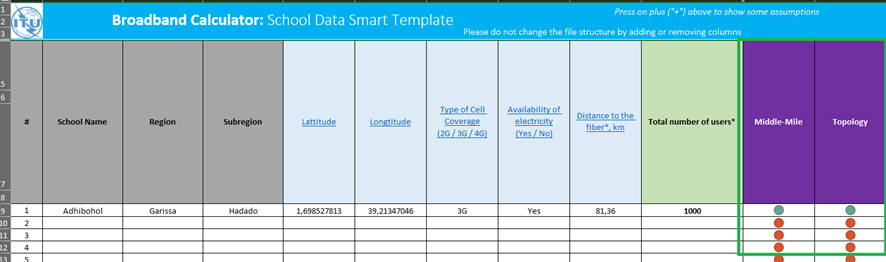
Figure 6. Data entering completeness
Extended template - Use when school data is detailed (Required Bandwidth for connecting school; Distance to the fiber; School building parameters, including school building width & length (or its area) and number of floors). If it is necessary you can return to previous steps using "Go Back" button (Marked in yellow). In Extended template you have more classified variables in "Users" parameters.
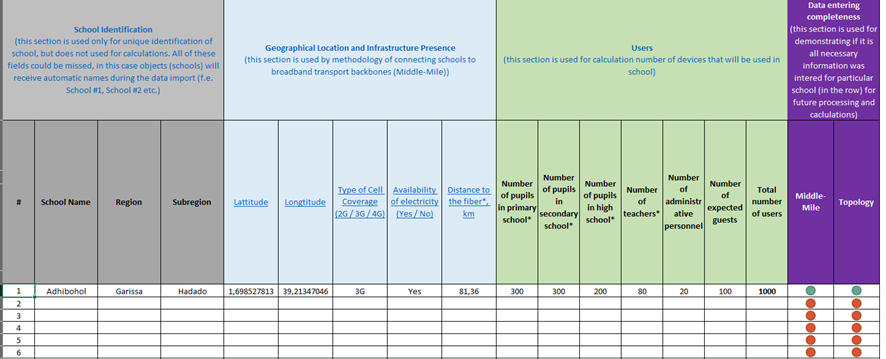
Figure 7. Extended template
Manage Project Variables
Also here you can change "Manage Project Variables" if you do not agree with program ones. Download "Project Variables Template" using  button. Fill in teamplate and upload them to the project by using
  button. If you want to reset variables to default ones click
  (Figure 1).
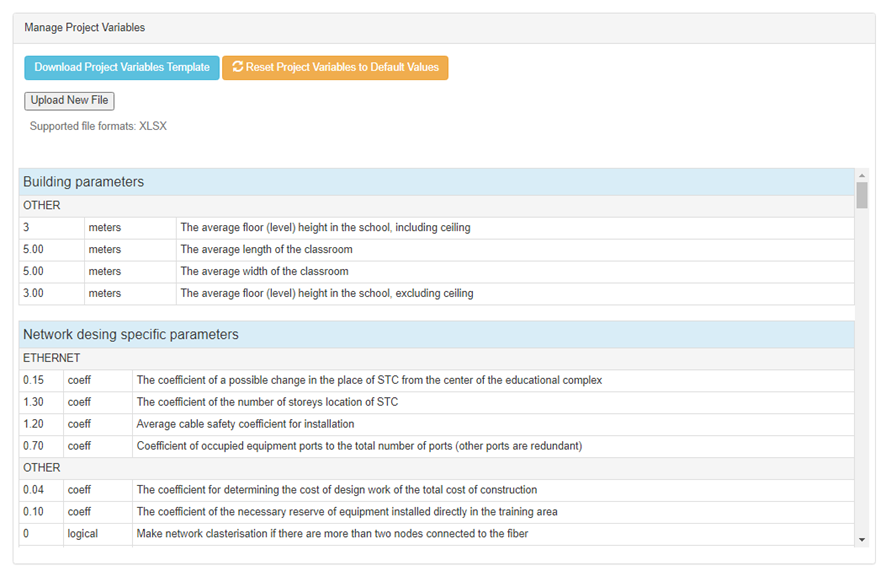
Figure 1. Manage Project Variables form
Project Calculation
If you want to calculate the project press button  in Managing The Projects tab. After information input you'll see "Calculation" options on the top of the window. Click to calculate the project (Figure 1).
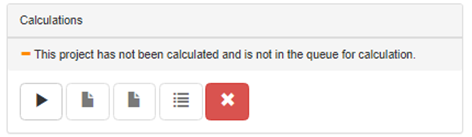
Figure 1. Calculations form
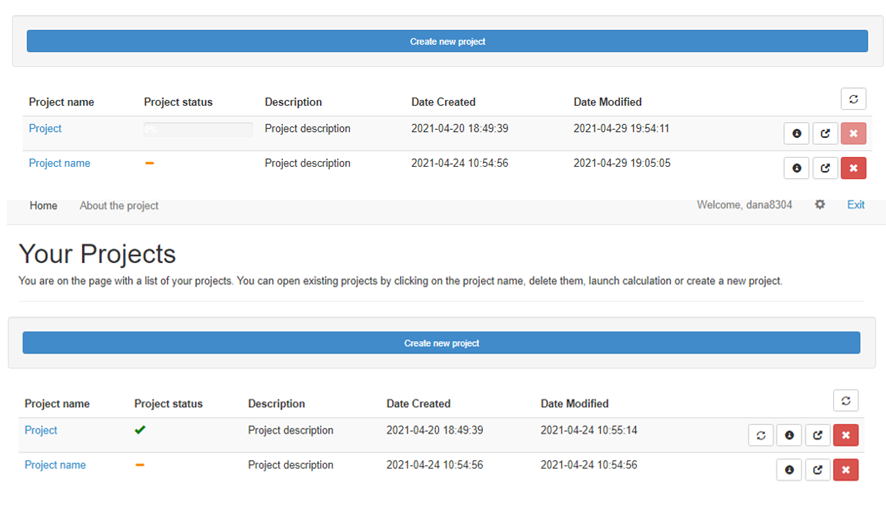
Figure 2. Home page
Duplicating A Project
You can create new project with "Duplicate the project" button  .
.
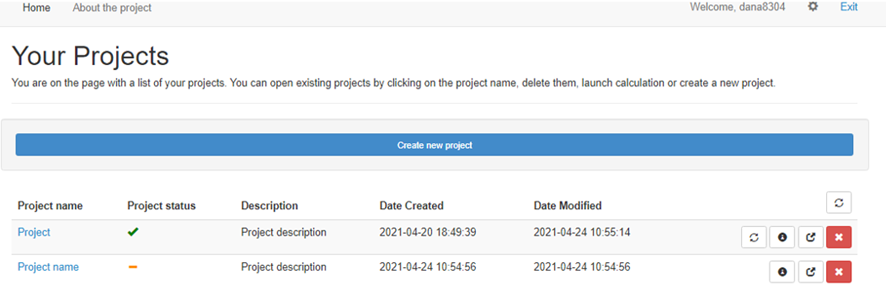
Figure 1. Home page
Deleting A Project
To remove file press  button on home page. Or same button in managing data entry template.
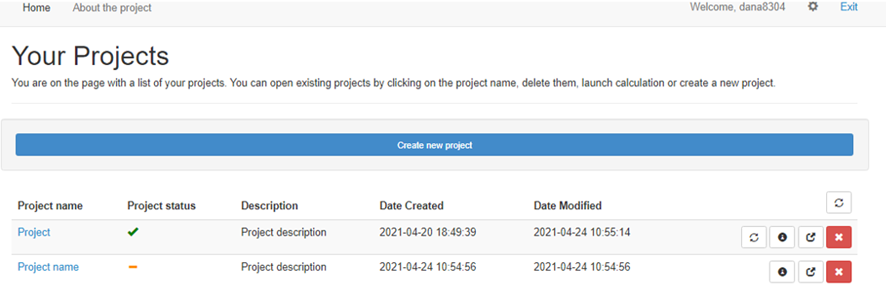
Figure 1. Delete button on home page
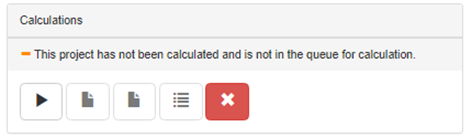
Figure 2. Delete button on "Managing data entry template" page