Account Authentication
Registration. Creating An Account
Registration in Broadband Calculation Tool: Schools is required only for multiple school mode. If you wish to identify the needs of one school in local computer network and broadband connection, and get a reference report with an estimation of costs and possible implementation scenarios you no need to sing up.
Step 1. Navigate to the Home page of the Broadband Calculation Tool: Schools website (Figure 1).
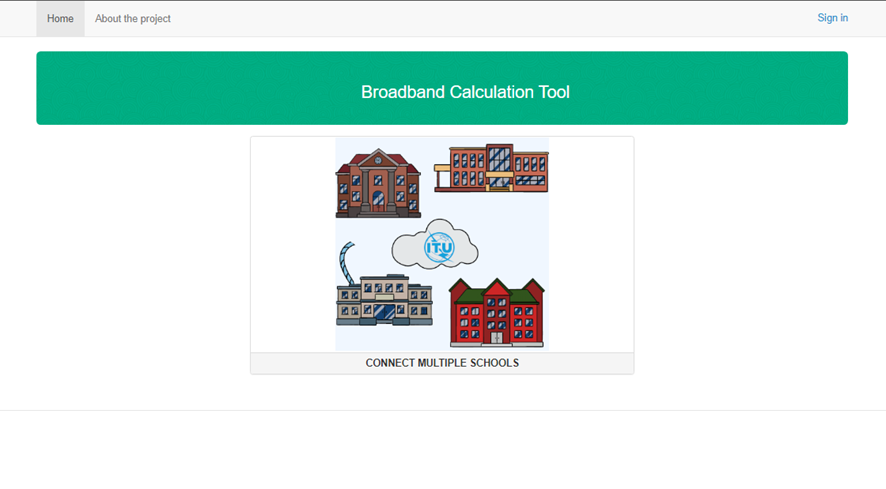
Figure 1. Web Application Home page
Step 2. If you have already registered an account press click on "Sing in" button at the top right side of the window (Figure 2) or "Enter" under the "Send" button in "Registration form" window to go to the user authentication (Figure 4).
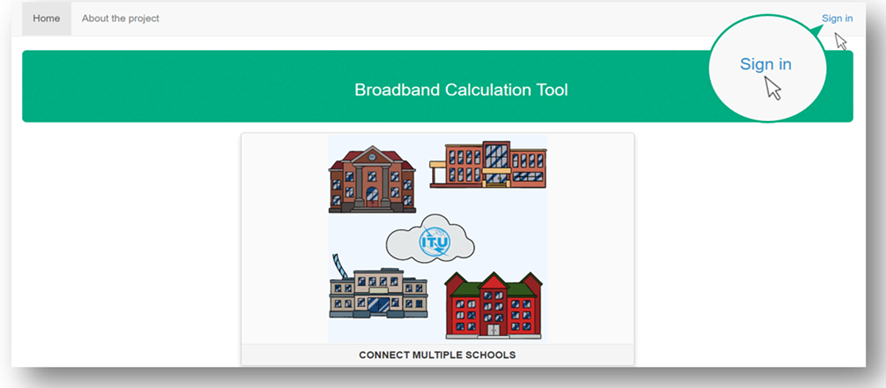
Figure 2. "Sing in" button
Step 3. To open Broadband Calculation Tool: Schools "Registration form" click the banner, in the middle of the window, shown in Figure 3.
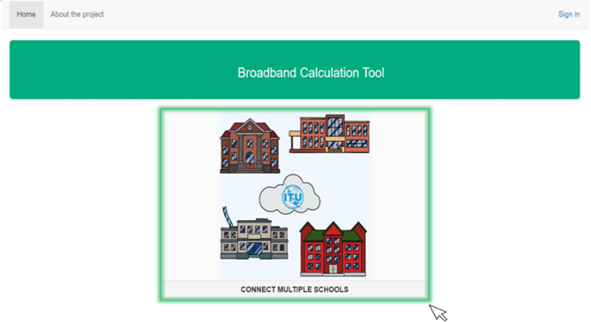
Figure 3. Banner
Step 4. The "Registration form" will open in your browser and you will be asked to either register a new account or use an existing account. If you have not setup an account before, fill in the "Registration form" (Figure 4).
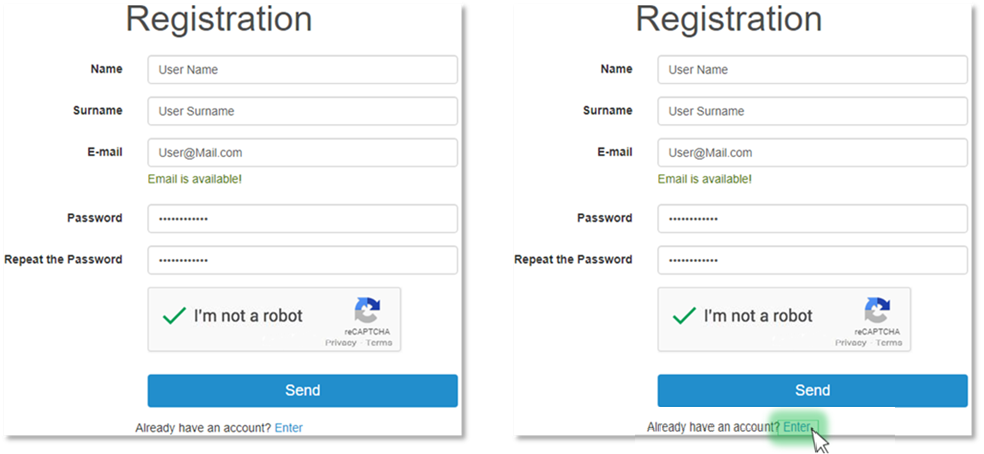
Figure 4. Registration form
Step 5. Users will be asked to enter or select the following information (all items are required):
Text field for entering the name

Text field for entering the family name, Surname

Text field for entering the email address, Email

Text field for entering the password

Important
Password must be 8-32 characters long, consisting at least one number from 0-9, small and capital letters of the latin alphabet.
Text field for a security check, users will be asked to retype their password

Important
In case of wrong password entering you will see notification "Must concide with the password in previous field". To check your password click
button in the at the top right side of the field "Repeate the password".
Malware Protection Component, reCAPTCHA
Step 6. After filling the "Registration form", activate the malware check, ticking the option "I'm not a robot", select the appropriate images among those which appear on the screen and click "Verify"(Figure 5).
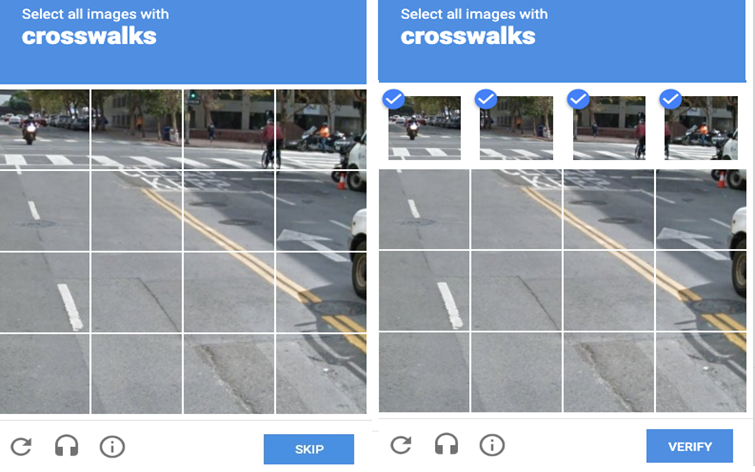
Figure 5. reCAPTCHA window
Step 7. If you select images correctly, the corresponding message "I'm not a robot" will be displayed. Click "Send" (Figure 6).
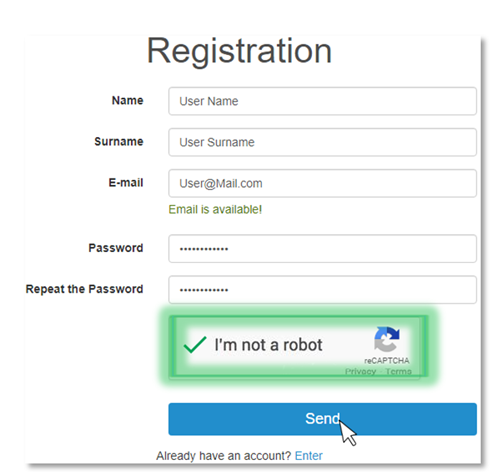
Figure 6. Submitting the registration form
User Authentication
Authorization in Broadband Calculation Tool: Schools is required for registered users only for multiple school mode.
Step 1. If you have already registered an account, fill in your login details (Figure 1). If you have no account press "Registration" under "Send" and go to Step 4 in Registration. Creating An Account .
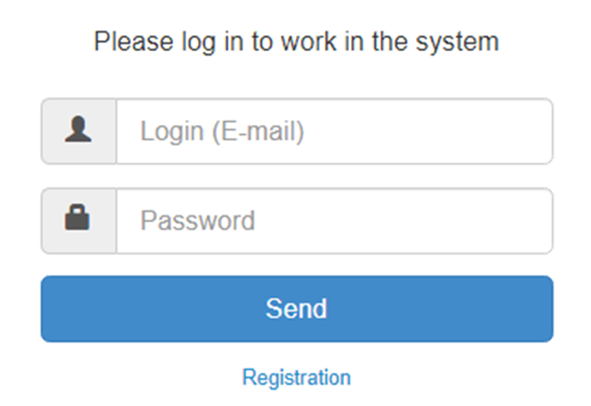
Figure 1. "Sign in" form
The log in form includes the following components:
Text field for entering the login (your E-mail address);

Text field for entering the password, Password.

Step 2. Press "Send" to enter your profile (Figure 2).
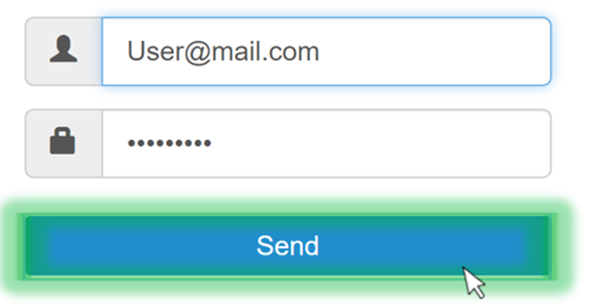
Figure 2. Log in to the Broadband Calculation Tool: Schools
After successfully creating an account and registering, you are ready to work in Broadband Calculation Tool: Schools.
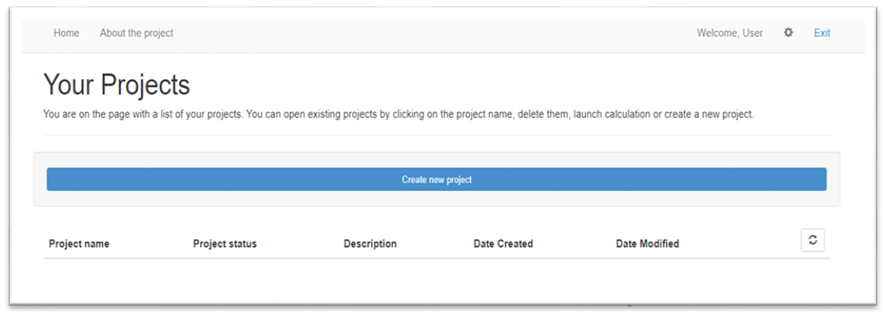
Figure 3. Broadband Calculation Tool: Schools Account