User Account Settings
Selecting The Language
Step 1. The following process outlines how to set language for an existing account. Please, press button, in the top right side of the window. In order to change settings (Figure 1).
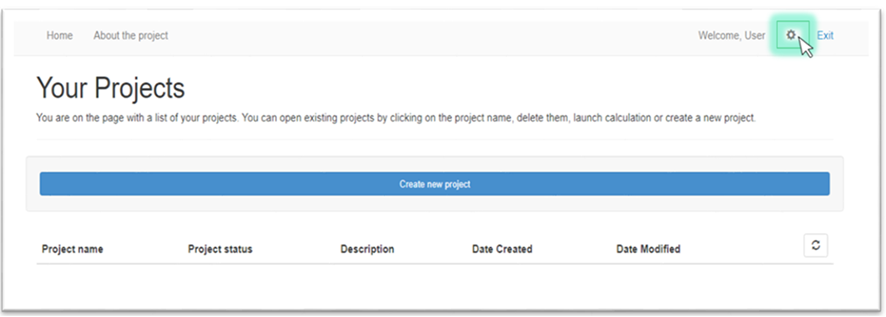
Figure 1. Settings
Step 2. In "Settings" window, you will be able to change language by pressing button under sign "Site language" (Figure 2).
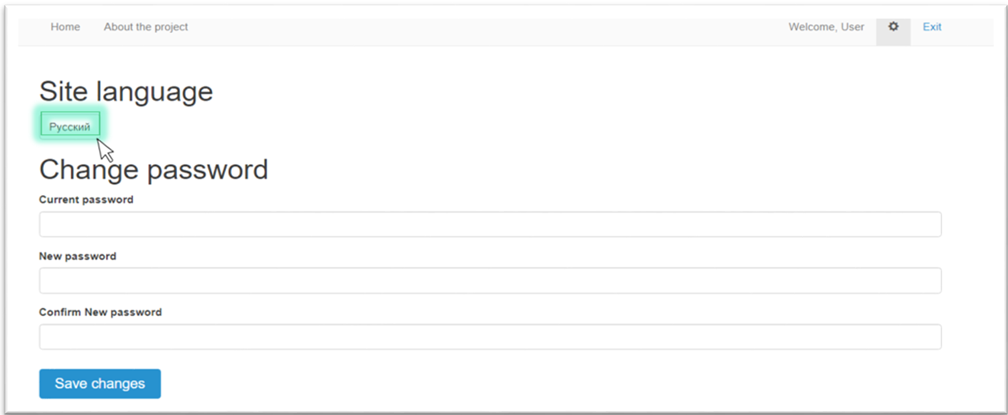
Figure 2. Language change button
Step 3. Press "Save changes" button (Figure 3).
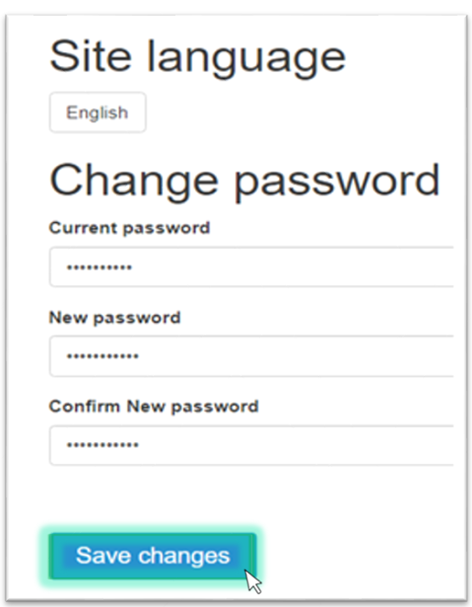
Figure 3. "Save changes" button
Changing The Password
Step 1. The following process outlines how to set password an existing account. Please, press button, in the top right side of the window. In order to change settings (Figure 1).
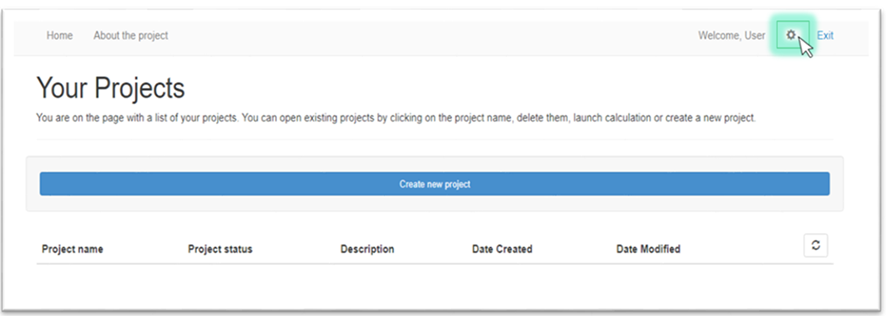
Figure 1. Settings
Step 2. To change your password you need to fulfill the following components: current password, new password and conformation of new password (Figure 2).
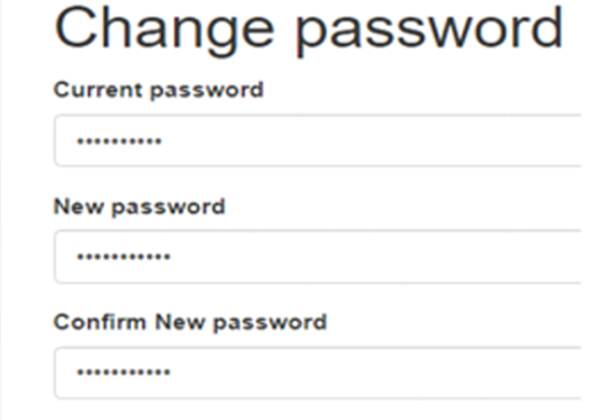
Figure 2. Change password form
Step 3. Press "Save changes" button (Figure 3). After this, you will see "Password changed successfully" above "Save changes" button (Figure 4).
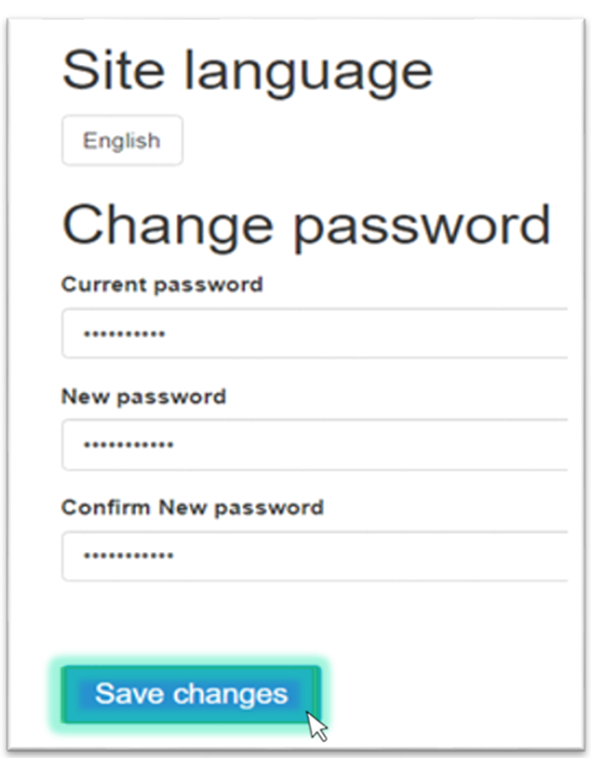
Figure 3. "Save changes" button
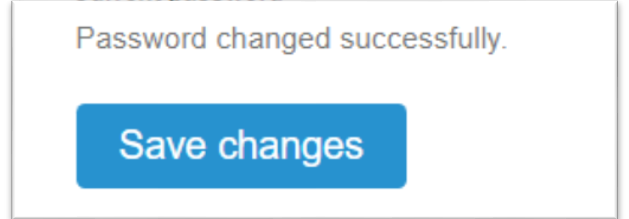
Figure 4. "Password changed successfully" notification